My WFH Requests
When Work From Home is enabled, open My Workspace > My WFH Requests. You can also use the Request WFH dashboard action.
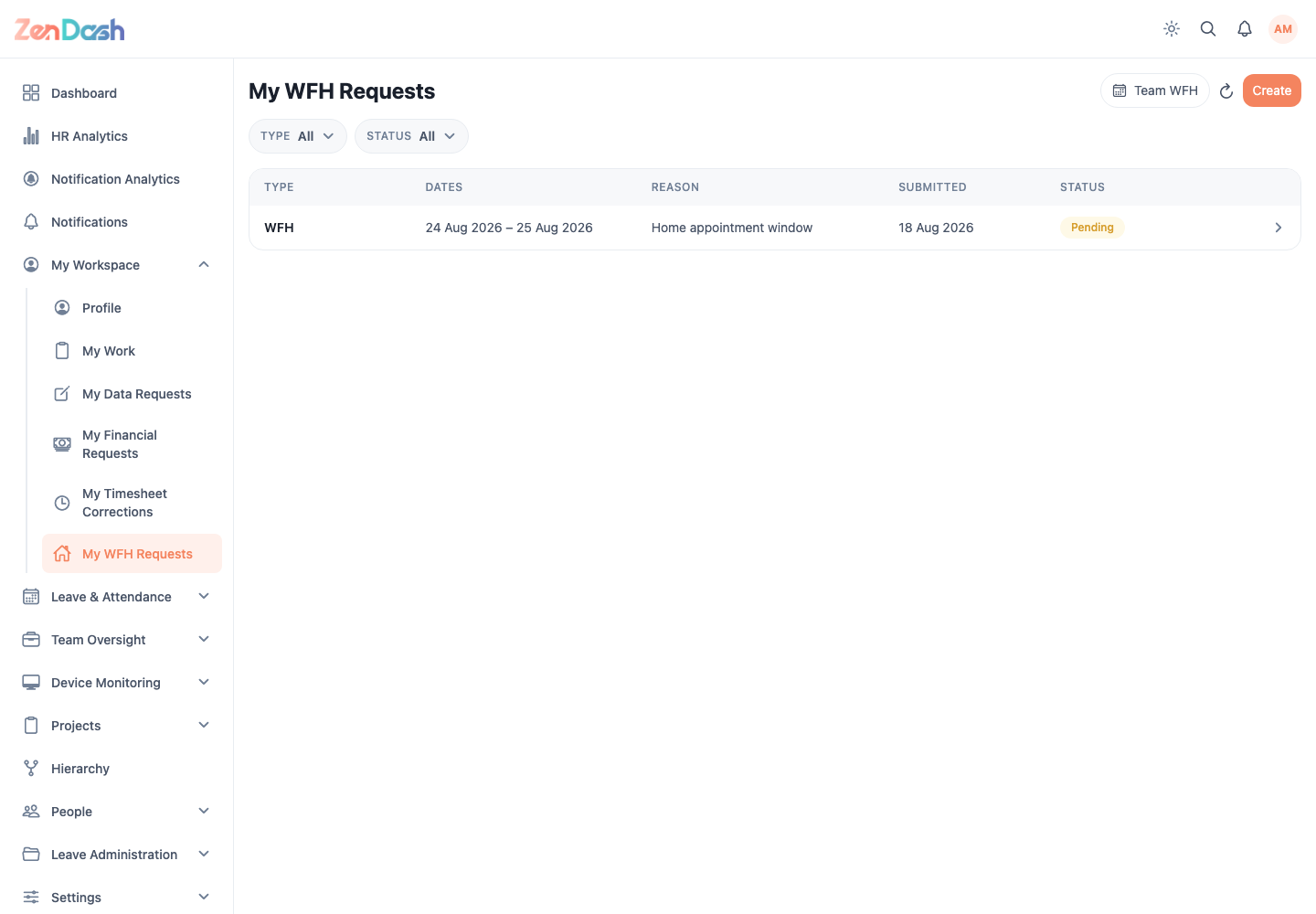
Submit a request
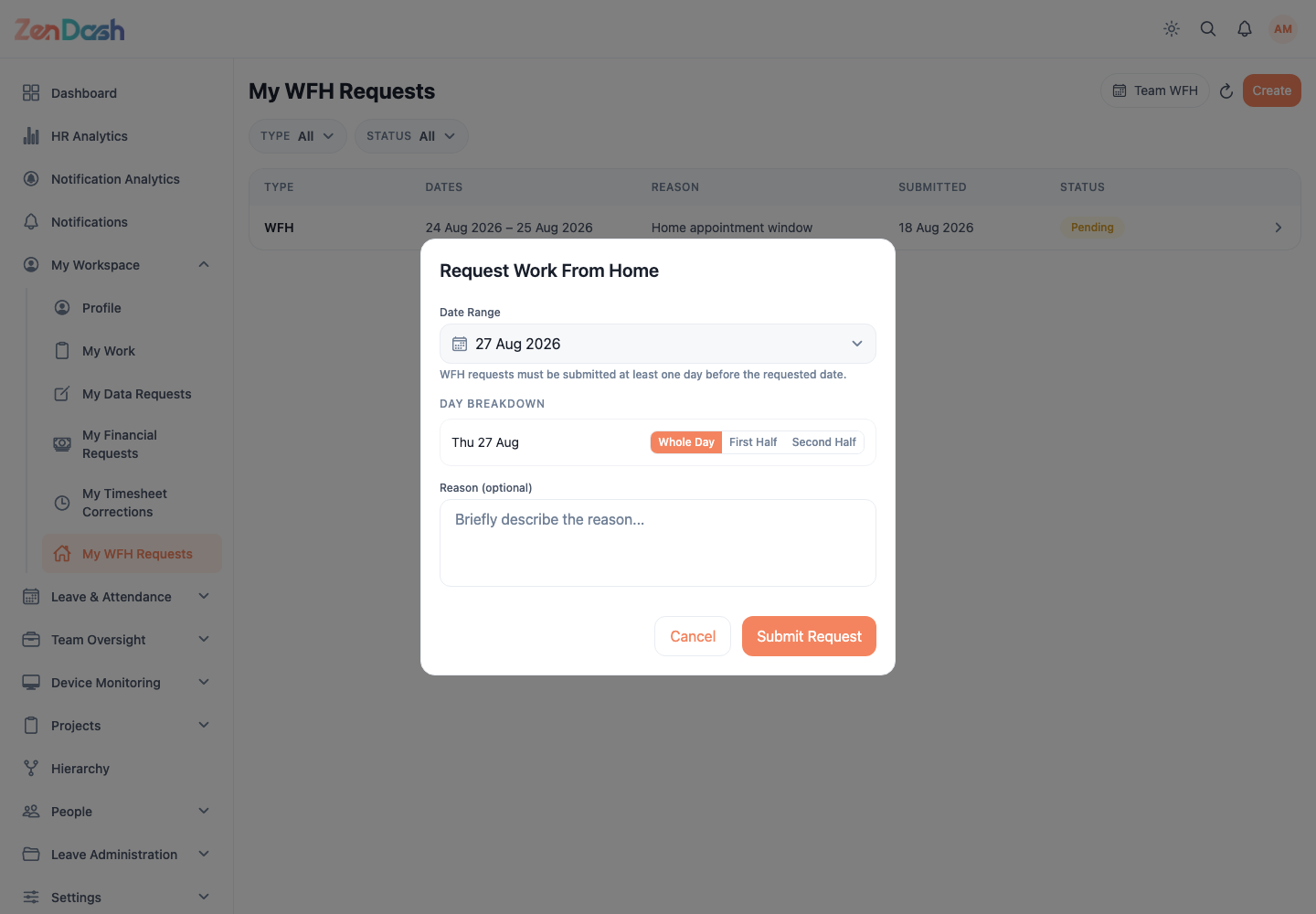
- Select Create.
- Choose the Date Range.
- Set the available day type for each date.
- Enter Reason (optional).
- Select Submit Request.
The date picker defaults to today and does not block dates based on the cutoff. Zendash checks the request against your organization's WFH cutoff when you submit it. If the request is rejected by that policy, the form keeps your entries and displays the server message so you can adjust the dates and try again. When cutoff enforcement is disabled, requests can include same-day or past dates.
Use the Type and Status filters to find earlier requests. Select a request to review its dates, reason, submitted time, and status.
A pending request can show Cancel Request. An approved request can show Withdraw; provide an optional withdrawal reason and select Submit Withdrawal.
Select Team WFH to open the shared team calendar.
If the screen reports Work From Home Not Enabled, your organization has disabled the module. WFH destinations are also omitted from navigation in that state.